Showing posts with label Halloween. Show all posts

Thursday, October 27, 2016

The Night is Haunted

This tut was written for those with a basic knowledge of psp.
I am using the awesome artwork of  Zindy S.D. Nielsen.
The tube is called She is Hot.
You need a license to use this art work. Please do not use without a license.
 You can find this art at her Store  HERE

Supplies Needed
I used PSPX...but any of them should work.
 Scrap  Fright_Fest by Naes Dezines  HERE
Check out the rest of the blog  HERE
Tonya  Halloween Mask 2 on Creative Misfit Creations Blog HERE
Check out the rest of the blog HERE
Scrappy Bit of Fun Animation 139 by Simone  HERE
Check out the rest of the blog HERE
Filters
Xero-Radiance

 Font of Choice, I used Young Frankenstein

Drop Shadow usually V2 H2 50 black
 *Remember to add your drop shadow as you go along*

Open a new image 800 x 800 or a size you prefer.
Paste paper 6, apply your mask, delete, merge group, duplicate, merge down.
Resize frame 3 to 70%, paste on the mask, click inside with your magic wand, expand by 5, paste paper 15, move so the moon shows, invert, delete, select none.

Paste your tube on the frame off center to the left, then go to Adjust, Hue and Saturation,
colorize with both numbers on 0.
Then apply the Xero Filter-Radiance

Resize the stone path to 55%, paste below the tube, duplicate, move to the right below the paper layer of the frame, duplicate, move to the left still being below the paper layer.

Resize cat 1 to 40%, place at the bottom in front of your tube layer to hide the straight edge of the tube.
Resize weed 2 to 40%, duplicate as many times as you like and place where you like, above and below the frame.

Resize element 5 to 50%, paste on the right side above the tube layer, sharpen once.
Resize the broom to 20%, place on the right above the pot, sharpen a couple of times.

Resize the bench to 50%, place behind the tube layer on the left.

Resize element 20 to 65%, place below the top stone path and adjust to your liking, duplicate twice, mirror one and move both below the paper layer of the frame.

Resize element 19 to 50%, paste on the right below the rock element.
Resize the skeleton to 25%, place on the right below the grass behind the pot.
Resize whichever bats you like to 25%, and place at the top where you like.

Resize the crow to 25%, place on the bench and sharpen a couple of times.
Resize tree 1 to 40%, place on the left, just above the mask layer, duplicate, mirror.

Resize the haunted house to 65%, place above the mask layer on the right, sharpen several times, duplicate, mirror, adjust to your liking.

Resize the word haunting to 15%, apply a medium glow with this color #c0c0c0, then duplicate a couple of times and place where you would like.

Add any other elements you would like, make it your own.

If you would like to animate, keep a white background and merge visible, resize, add your copyright and name, cope to animation shop and make the same amount of layers as the animation, this one has 32 layers.
Then go to edit, copy all on the animation, then click on the tag and edit, select all, paste into selected frame on the right on the house at the top part, check animation and if happy save.

If no animation this do this instead.

Crop your tag to be sure no stray shadows are on the edges of your tag.
Once happy with it all, close off any backgrounds, merge visible.
Resize first, then add your copyrights and name.
That's it
Hope you enjoyed doing my tut.

Saturday, October 22, 2016

The Witchy Hour

This tut was written for those with a basic knowledge of psp.
I am using the awesome artwork of  Anna Liwanag.
The tube is 67-3
You need a license to use this art work. Please do not use without a license.
 You can find this art at CDO Store  HERE

Supplies Needed
I used PSPX...but any of them should work.
 Scrap  Witches Brew by Manipulated by Magik  HERE
Check out the rest of the blog  HERE
  Tonya  Halloween Mask 2 on Creative Misfit Creations Blog HERE
Check out the rest of the blog HERE
Scrappy Bit of Fun Animation 138 by Simone  HERE
Check out the rest of the blog HERE

Font of Choice, I used Rofi Taste

Drop Shadow usually V2 H2 50 black
Drop shadow on this one I used V-2 H-2 Blur 15
Use whatever drop shadow you prefer
 *Remember to add your drop shadow as you go along*

Open a new image 800 x 800 or one you prefer, paste paper 14, apply your mask, delete, merge group. 

Resize the castle to 80%, place on the right and up some, then go to Adjust, Hue and Saturation, Colorize and put both numbers on 0, duplicate, change the blend mode to burn, merge down, duplicate, mirror and move down some.

Paste the spider web on the castle layers.

Paste the tombstone in the center above the spider web, duplicate, resize to 75%, move to the right, duplicate, move to the left side.

Paste your tube on the left side of the center tombstone.

Paste the skulls grass on the left, above the tube layer, duplicate, mirror.
Resize the pumpkin to 45%, place below the grass on the right, duplicate, move over to the left, duplicate, move above the one you just moved to only have the larger one showing in the back.

Resize the spider to 25%, place on the pumpkin on the left, duplicate, move over to the top of the tombstone on the right.
Paste the tree behind the tombstone and up more in the center, duplicate, change the blend mode to burn, duplicate twice, move one to the left and one to the right.

Resize Salem to 50%, place on the bottom in front of the skull grass where you like.
Resize the shoes to 40%, place more on the right side.

Paste the sparkles at the top below the tube layer, duplicate, move down above the tombstones on the bottom.

Add any other elements you would like, make it your own.

IF you want to Animate,
merge all with the white background, resize, add your copyright and name, take to Animation and make 31 layers, the same amount as the animation.
Go to Edit, select all on the animation, then on the tag, select all, paste into selected frame and paste the first head of the animation on the tombstone on the right a little above it.
Test and if happy save.

If not going to animate then do this

Crop your tag to be sure no stray shadows are on the edges of your tag.
Once happy with it all, close off any backgrounds, merge visible.
Resize first, then add your copyrights and name and any wordart you would like.
That's it
Hope you enjoyed doing my tut.

Thursday, October 20, 2016

Witches Brew

This tut was written for those with a basic knowledge of psp.
I am using the awesome artwork of  Alehandra Vanhek.
The tube is called Trisha, and she has extra clothing you can buy.
You need a license to use this art work. Please do not use without a license.
 You can find this art at the PFD Store  HERE

Supplies Needed
I used PSPX...but any of them should work.
 Scrap  Witches Brew by Manipulated by Magik  HERE
Check out the rest of the blog  HERE
  Tonya  Halloween Mask 2 on Creative Misfit Creations Blog HERE
Check out the rest of the blog HERE
Scrappy Bit of Fun Animation Candle Flame by Simone  HERE
Check out the rest of the blog HERE
Filter
Mura Meister Copies-Encircle

Font of Choice, I used Master of Break

Drop Shadow usually V2 H2 50 black
 *Remember to add your drop shadow as you go along*

Open a new image 800 x 800 or a size you prefer, add a new layer, fill with white.
Paste paper 5, apply your mask, delete, merge group.

Paste your close up tube, mirror, adjust where you want it, then apply the same mask,
change the blend mode to hard light.
Paste the spider web on the tube and move up a bit, change the blend mode to overlay.

Resize your tube to 45%, place toward the bottom.

Paste the apothecary bottle behind the tube on the right.
Resize the poison bottle to 50%, place in front of the first bottle on the right, duplicate, mirror.
Resize the empty bottle to 50%, place behind the poison bottle.
Paste the candelabra on the left in front of the poison bottle.

Resize the books to 60%, place above the tube layer in the center.
Resize the candy to 50%, place by the books.
Resize the cat Salem to 70%, place on the right side.
Resize the shoes to 50%, place on the right side above the cat layer.
Resize the pouch to 50%, place on the left by the books.
Resize the Chalice glass to 40%, place by the pouch.

Resize the sparkles to 80%, apply Mura Meister Copies-Encircle with the first number on 30,
move below the mask layer, duplicate, merge down and sharpen.

Resize flower 6 to 60%, place below the bottles on the left, duplicate, mirror, adjust on the right, duplicate again and move down so some shows at the bottom.
Paste the berry branch on the right between the bottles.

Add any other elements you would like, make it your own.

If you want to Animate
Resize all layers first, add your copyright and name first, then copy
merged with the white background to animation and make as many layers as the candle flame has, which is 21 layers.
Then click on the first candle layer in animation, go to Edit, select all, copy.
Then on the first layer of your tag, go to Edit, select all, paste into selected frame.
Keep pasting in selected frame until all the candles are lit.
Test your animation and if happy save.

If you are not going to animate, then do the below.

Add any other elements you would like, make it your own.

Crop your tag to be sure no stray shadows are on the edges of your tag.
Once happy with it all, close off any backgrounds, merge visible.
Resize first, then add your copyrights and name.
That's it
Hope you enjoyed doing my tut.

Tuesday, October 18, 2016

Haunting

This tut was written for those with a basic knowledge of psp.
I am using the awesome artwork of  Laguna.
The tube is called Amanita witch with a kitty.
You need a license to use this art work. Please do not use without a license.
 You can find this art at the PFD Store  HERE

Supplies Needed
I used PSPX...but any of them should work.
 Scrap  Fright_Fest by Naes Dezines  HERE
Check out the rest of the blog  HERE
MB&SW Mask 65  HERE
Check out the rest of the blog HERE

Filters
EyeCandy 4000-Gradient Glow (Optional)

 Font of Choice, I used Devil East

Drop Shadow usually V2 H2 50 black
 *Remember to add your drop shadow as you go along*

Open a new image 800 x 800 or a size you prefer.
Paste paper 11, apply mask 65, delete, merge group.
Paste paper 5, apply the same mask again, change the blend mode to burn, merge down.

Paste the stone path and resize to 90%, move to the bottom.
If using the same tube as I am, resize to 25%, place on the left.

Resize the old car to 55%, place behind the tube layer on the right.

Resize element 20 to 85%, paste below the old car layer how you like, duplicate, mirror, move up some, duplicate again, mirror, move up again, adjusting to your liking.

Resize the skeleton to 25%, place on the rocks below the tube layer, duplicate, mirror, making them sitting on the flat part of the rock wall.

Resize element 19 to 50%, place on the mask layer off center to the left, duplicate, resize to 55%, move to the right a bit, duplicate, mirror, adjust behind your tube.

Resize tree 4 to 25%, paste below the headstone on the right, sharpen once or twice.
Resize cat 1 to 30%, place in front of the old car on the right.
Resize book 1 to 30%, place on the left under the hand of your tube, sharpen a couple of times.
Resize book 4 to 25%, place by the leg of your tube, sharpen once.
Resize the rat to 25%, place by the book on the left.

Resize the chain to 25%, place under the cat, sharpen a couple of times.

Resize the bats 2 to 40%, mirror, move to the left, apply a gradient glow with these setting using
Eye Candy 4000-Gradient Glow
Width 3,  Soft Corners 25, Over all Opacity at 50 and color #eb5b29

Resize weed 1 to 50%, place behind your tube, sharpen several times to give it some highlights, then duplicate a couple of times and place where you like, moving below some of the rock areas.

Resize element 1 the handprint to 10%, place on the hood of the truck, duplicate and move over a bit.
Resize the sign to 35%, place on the right on the tree.
Select the word you would like for your sign, I picked Haunted and resized it to 5%, placed it on the sign and added the gradient glow like before.
Resize bird 2 to 15%, mirror, place on the sign, sharpen several times.
Resize the leaves to 65%, place on the stone under your tube and move below the old car layer.

Resize moon 2 to 30%, place at the top on the mask layer behind the tree, change the blend mode to Hard light.

Add any other elements you would like, make it your own.

Crop your tag to be sure no stray shadows are on the edges of your tag.
Once happy with it all, close off any backgrounds, merge visible.
Resize first, then add your copyrights and name.
That's it
Hope you enjoyed doing my tut.

Monday, October 17, 2016

Halloween Treat

This tut was written for those with a basic knowledge of psp.
I am using the awesome artwork of  Alicia Mujica.
You need a license to use this art work. Please do not use without a license.
Tube is called Perpetua.
You can find this art at her Store  HERE

Supplies Needed
I used PSPX...but any of them should work.
 Scrap Halloween Treat Collab by Scrap Dimensions  HERE
Check out the rest of the blog HERE
Mask 228 by Gems Taggin  HERE
Check out the rest of the blog HERE

Font of Choice, I used Gondoliere

Drop Shadow usually V2 H2 50 black
Use whatever drop shadow you prefer
 *Remember to add your drop shadow as you go along*

Open a new image 800 x 800 or one you prefer, paste paper 3, apply your mask, delete and merge group, resize the mask larger to 125%.

Resize element 5 to 60%, place on the left side.

Resize your tube to 35%, place on the right with the hand on the cauldron pot.

Resize element 6 to 40%, place on the right side.
Resize element 15 to 75%, place on the left below the pot, duplicate, mirror.
Resize element 21 to 25%, place on the left side, duplicate, move out and up just a bit.

Resize element 16 to 45%, paste below the tube layer on the left at the bottom, duplicate, move below the pot and down toward the bottom, duplicate again and move over to the right.

Paste element 26 on the mask layer and move left a bit, change the blend mode to
Luminance (Legacy) and lower the opacity to 70.
Resize element 3 to 20%, place on the center of the spider web.

Resize element 12 to 75%, paste below the tube layer, mirror, move back to the right.

Resize element 4 to 60%, paste in front of the tube layer against her legs.

Resize element 24 to 20%, paste at the upper right.
Resize element 23 to 25%, place on the cauldron pot and erase some of the stem to make it look like it is in the pot.
Resize element 27 to 30%, place between the two toxic bottles at the bottom left, duplicate, move toward the center and below the tube layer, move up so just the fallen petals are showing, duplicate again and move over under the 3 bags, erasing any of the stem showing.

Add any other elements you would like, make it your own.

Crop your tag to be sure no stray shadows are on the edges of your tag.
Once happy with it all, close off any backgrounds, merge visible.
Resize first, then add your copyrights and name.
That's it
Hope you enjoyed doing my tut.

Cute Witch Glenda

This tut was written for those with a basic knowledge of psp.
I am using the awesome artwork of  Alicia Mujica.
You need a license to use this art work. Please do not use without a license.
Tube is called Glenda.
You can find this art at her Store  HERE

Supplies Needed
I used PSPX...but any of them should work.
 Scrap Fright_Fest by Nae Dezines-Afternoon Delight  HERE
Check out the rest of the blog HERE
Tonya  Halloween Mask 2 on Creative Misfit Creations Blog HERE
Check out the rest of the blog HERE

Filters
Mura Meister Copies-Encircle

Font of Choice, I used Gondoliere

Drop Shadow usually V2 H2 50 black
Use whatever drop shadow you prefer
 *Remember to add your drop shadow as you go along*

Open a new image 800 x 800 or one you prefer, add a new image, fill with #671ca5,
apply your mask, delete, merge group.

Paste frame one, resize to 60%, click inside with your magic wand, expand by 5, add a new layer and fill with #bd9dd5, select none, move below the frame.
Resize frame 6 to 85%, paste below the color layer of the frame.

Resize flower 6 to 25%, apply Mura Meister Copies-Encircle, changing the first number to 30,
paste above the black frame.
Resize leaves 5, to 35%, apply Mura Meister Copies-first number still on 30, paste below the flower circle.

Resize your tube to 35%, place below the purple frame, duplicate, move above the frame, erasing the bottom part of the tube, but leaving the hand and broom above the frame.

Resize the bench to 65%, paste on the right below the broom.
Resize book 2 to 50%, place on the bench.

Resize the boot to 40%, place on the left, duplicate, mirror, move back to the left how you like.

Resize cat 2 to 40%, place by the bench.
Bottles 9 are several bottles, pick the ones you like and resize to what you want, I resized the three I used to 40% and placed two of them on the bench and one by the cat.

Resize pumpkin 1 to 50%, place on the left below the boots.

Paste leaves 4 above the top tube layer at the bottom.
Resize the spider to 75%, paste at the bottom on the leaves, duplicate, move over on the bench.
Resize flower 7 to 25%, free rotate to the left at 45 degrees, mirror, place on the left below the boot layers, duplicate, mirror, move above the orange bottle on the bottom.

Resize bat 2 to 30%, place at the top right, duplicate, mirror, adjust.

Add any other elements you would like, make it your own.

Crop your tag to be sure no stray shadows are on the edges of your tag.
Once happy with it all, close off any backgrounds, merge visible.
Resize first, then add your copyrights and name.
That's it
Hope you enjoyed doing my tut.

Wednesday, October 12, 2016

Hot Stuff

 This tut was written for those with a basic knowledge of psp.
I am using the awesome artwork of  Arthur Crowe.
The tube is called Hell Babe
You need a license to use this art work. Please do not use without a license.
 You can find this art at his Store  HERE

Supplies Needed
I used PSPX...but any of them should work.
 Scrap Burning_Halo HERE
Check out the rest of the blog HERE
Scrappy Bit of Fun Mask 209 by Simone HERE
Scrappy Bit of Fun Animation 134 by Simone HERE
Check out the rest of the blog HERE

Font of Choice, I used Your Fear

Drop Shadow usually V2 H2 50 black
Drop shadow on this one I used V-2 H-2 Blur 15
Use whatever drop shadow you prefer
 *Remember to add your drop shadow as you go along*

Open a new image 800 x 800 or one you prefer.
Paste paper 4, resize larger to 130, paste your mask, delete, merge group.

Paste the mesh, duplicate, flip and adjust.

Paste frame 1, move to the left a bit, duplicate, change the blend mode to burn, merge down.
Free rotate to the left at 10 degrees.
Click inside with your magic wand, expand by 5, paste paper 5, invert, delete, move below the frame, mirror your middle size tube, paste, delete, select none.
Duplicate the tube, change the blend mode to burn, merge down.

Resize your full tube to 85%, place on the right side.

Paste the fire below your tube layer, duplicate, move above the tube layer and erase the parts on the left of the tube.

Paste the word Hell and change the blend mode to Luminance (Legacy).

Resize Ghost Satan to 95%, place behind the tube on the right.

Paste the candle on the right below the Ghost Satan.

Resize the Heel to 60%, mirror, place on the left side by the H of the word Hell.

Paste the label, hot stuff below the tube layer by her hand, change the blend mode to hard light.

Resize the flair button to 75%, place below the fire layer on the left.

Add any other elements you would like, make it your own.

Animation if you would like to do this part
Keep a white background on your tag, resize all layer to 80%, do not merge your tag.
Add your copyright and name now also.

Close off your tube layer, the fire above your tube, the copyright and name, copy merged to animation shop.
Make 21 layers of your tag to match the animation layers.
Edit, select all, copy on the animation, then go to your tag, click, edit, select all, paste into selected layer, paste the animation on the right side of your tag.
Go back to psp, open your tube layer and fire layer, close off everything else, copy merged these two layers to animation, make 21 layers, then edit, select all, edit, paste into selected frame

If no animation then do this
Crop your tag to be sure no stray shadows are on the edges of your tag.
Once happy with it all, close off any backgrounds, merge visible.
Resize first, then add your copyrights and name.
That's it
Hope you enjoyed doing my tut.

Monday, October 3, 2016

Spell Bound


This tut was written for those with a basic knowledge of psp.
I am using the awesome artwork of  Alex Prihodko.
The tube is called Witch_4.
You need a license to use this art work. Please do not use without a license.
 You can find this art at the PFD Store  HERE

Supplies Needed
I used PSPX...but any of them should work.
Scrap Something Wicked by Melissaz Creationz HERE
Check out the rest of the blog HERE
Gems Mask_228 HERE
Check out the rest of the blog HERE

Filters
Screen Works-Light Gauze

 Font of Choice, I used  RofiTaste

Drop Shadow usually V2 H2 50 black
 *Remember to add your drop shadow as you go along*

Open a new image 800 x 800
Paste paper 9, apply your mask, delete and merge group, resize the mask larger to 130%.

Paste element 3, the frame, click inside with your magic wand, expand by 5, paste paper 3, move below the frame, invert, delete, paste your tube, delete, select none.
Duplicate your tube, go to Adjust, Blur, Gaussian blur at 4, change the blend mode to screen.
Apply the Screen Works filter-Light Gauze, merge tube down, mirror.

Paste element 15 on the frame layer.

Resize your tube to 50%, place at the bottom part of the frame.

Paste element 19 under your tube, duplicate, move over, duplicate a couple more times and move up behind the tube more.

Resize element 10 to 70%, place on the right under the arms of the tube.

Resize element 2 to 63%, paste on the mask layer and move up, duplicate, move down on the left, erase the part showing on the right, duplicate, mirror.

Resize element 4 to 60%, place on the upper right side below the paper layer of the frame.

Resize element 29 to 65%, place in front of the tube, resize element 30 to 70%, place by the first bottle.
Paste element 33 on the left by the bottles, duplicate, move up where you like.

Resize element 22  to 75%, place in front of the tube layer about center.

Resize element 34 to 75%, place by the skull, duplicate, mirror, place below the book layer on the right.

Paste element 32 on the left side above the tube layer where you like.

Resize element 11 to 65%, place on the left above the tube layer.

Add any other elements you would like, make it your own.

Crop your tag to be sure no stray shadows are on the edges of your tag.
Once happy with it all, close off any backgrounds, merge visible.
Resize first, then add your copyrights and name.
That's it
Hope you enjoyed doing my tut.

Wednesday, September 14, 2016

Halloween Witch


This tut was written for those with a basic knowledge of psp.
I am using the awesome artwork of  Eugene Rzhevskii.
The tube is called Witch_Jane.
You need a license to use this art work. Please do not use without a license.
 You can find this art at the PFD Store  HERE

Supplies Needed
I used PSPX...but any of them should work.
 Template 64 by Drama Bomb  HERE
Check out the rest of the blog  HERE
Scrap Something Wicked by Melissaz Creationz HERE
Check out the rest of the blog HERE
WSL_Mask 84 HERE

Filters
Xero-Fritillary

 Font of Choice, I used Devil East

Drop Shadow usually V2 H2 50 black
 *Remember to add your drop shadow as you go along*

Open your template, hold the shift key and hit the letter d to duplicate, close the original.
Go to Image, Canvas size 800 x 800 or a size you prefer, delete the credits.

Paste paper 9 on the bottom layer, apply your mask, delete, merge group.
Resize your mask larger to fit your tag.

Select layer 14, the orange wordart, select all, float, defloat, paste paper 7, invert, delete, delete the orange wordart also.
Then Go to Effect, 3D Effects,  Inner Bevel and apply with these settings
Shape 2, width 2
3, 8, 0, 10
315, 50, 30
color white
On layer 16, wordart witch, select all, float, defloat, new raster layer, fill with #80c83c, delete the orange wordart also, merge the black down and move this wordart out more.

Paste your tube on the top layer, mirror, resize to 50%, place how you like it.

Select layer 12, paste paper 5, invert, delete, delete the template also.
Paste the same paper #5 on layer 1 and 3 of the template.
Layer 10 apply the Xero filter-Fritillary with these settings,
5, 30, 10, 20

Resize element 16 to 70%, place under your tube layer at the bottom.

Resize element 10 to 70%, paste on the right above the tube layer by her shoe.
Paste element 33 by the books at the bottom.
Resize element 22 to 55%, place on the books.
Resize element 34 to 55%, mirror, place on the pumpkin of the tube, duplicate, mirror, place where you like.
Resize the bottles of poison to 55%, place by the books how you like.

Paste element 17 on the center circle where you did the fritillary filter.

Paste element 19 at the bottom just above the mask layer, duplicate, mirror.
Paste element 11 on the right below the book layers.


Add any other elements you would like, make it your own.

Crop your tag to be sure no stray shadows are on the edges of your tag.
Once happy with it all, close off any backgrounds, merge visible.
Resize first, then add your copyrights and name.
That's it
Hope you enjoyed doing my tut.

Wednesday, October 28, 2015

Pumpkin Cutie

 
This tut was written for those with a basic knowledge of psp.
I am using the awesome artwork of Alicia Mujica.
This tube is one of her 2015 Halloween Special.
You need a license to use this art work. Please do not use without a license.
 
 You can find this art at her Store  HERE
 
Supplies Needed
I used PSPX...but any of them should work.
Scrap Pumpkins & Candy Corn by Magik  HERE
Check out the rest of the Blog HERE
Halloween Glowing Pumpkin Mask by Tonya HERE

Font of Choice, I used Mf Queen Leela

Drop Shadow usually V2 H2 50 black
 
Let's get started
*Remember to add your drop shadow as you go along*
 
This is a quickie one
 
Open a new image 800 x 800 or one you prefer, paste paper 3, apply your mask,
delete and merge group.
 
Paste frame 1, click inside with your magic wand, expand by 5, paste paper 1, invert, delete, select none and move the paper below the frame.
Go to Effects, Textures Effects, Weave and apply these settings to the paper
1, 10, 1,
Weave and Gap color white and fill gaps checked.
 
Resize your tube to 30%, place on the right side above the frame.
 
Resize the pumpkin cuppy to 45%, place on the right below the tube.
 
Paste the sign on the left side.
 
Resize the thorned candy corn to 40%, place by the sign.
 
Resize pumpkin pops to 60%, place on the right below the cupcake.
 
Resize the cupcake to 40%, place below the sign layer on the left.
 
Resize the cat to 40%, place by the tube.
 
Paste the string just above the frame layer at the bottom, duplicate, mirror, erase the parts showing above the other elements.
 
Resize the treat bag to 45%, place behind the tube, duplicate and move over and down a bit.
 
Paste the sparkle on the paper in the frame, mirror, erase any showing outside the frame, duplicate, move down to the mask layer on the left and adjust, duplicate, mirror, duplicate again, free rotate to the left at 90, move to the top of the mask, duplicate, flip.
 
Resize bow 3 to 20%, paste on the sign on the left.
 
Add any other elements that you would like.
 
Crop your tag to be sure no stray shadows are on the edges of your tag.
Once happy with it all, close off any backgrounds, merge visible.
Resize first, then add your copyrights and name.
 
That's it
Hope you enjoyed doing my tut.

Wednesday, September 23, 2015

Yuba Duba Witchy


This tut was written for those with a basic knowledge of psp.
I am using the awesome artwork of  Eugene Rzhevskii.
The tube is called Witch Marta
You need a license to use this art work. Please do not use without a license.
 
 You can find this art at the PFD Store  HERE
 
Supplies Needed
I used PSPX...but any of them should work.
Scrap Yuba Duba Boo by Tootypup Scraps  HERE
This was part of a Blog train
Be sure to check out the rest of the blog HERE
Creative Misfits Creations-Mask by Tonya called
Halloween Glowing Pumpkins   HERE
Filters
Mura Meister Copies-Encircle
 
Font of Choice, I used strawberry

Drop Shadow usually V2 H2 50 black
 *Remember to add your drop shadow as you go along*

Open a new image 800 x 800 or one you prefer working with.
I like lots of room, can resize later.

Resize paper 3b to 85%,  apply your mask, delete, merge group.
Resize paper 3c to 83%, paste, apply your mask again, delete, merge group.

Paste frame 2, resize to 75%.
Resize the pumpkin cottage to 70%, paste on the frame and center, duplicate, mirror, move below the first cottage and up some,  then erase all but the flowers.
You might have to try this a couple of times to get the right parts erased.

Resize the Old post fence to 85%, paste below the frame layers.
Paste the Halo ground just above the post fence layer, resize to 85%, duplicate, move below the fence layer and up just a bit.

Resize the Halo Frog to 25%, paste on the left side by the mailbox.
Resize the original frog to 15% and place on the fence post on the right.
Resize the witches hat to 30%, place on the right side.

Resize little ghost 8 to 15%, place by the window on one side or the other.

Resize Deco 1 to 35%, place up by the stem, duplicate, mirror.
Resize bow 2 to 30%, place on top.
Resize Halo Deco 1 to 50%, free rotate to the left at 90, place under the flowers at the top on the stems, duplicate, mirror.

Resize Halloween tag to 40%, place on the fence post on the right side, below the frog.
Then free rotate to the right at 10 degrees. If you want to change the color,
go to Adjust, Hue and Saturation, colorize with these numbers
Hue 25, Saturation 170 or a color you prefer.

Resize the Halo Deco 1 to 50%, place on the fence post below the sign, duplicate, mirror.

Resize the spider to 15%, place by the hat, duplicate and move up to the left side.

Resize Halo Deco 2 to 45%, apply the Mura Meister Copies-Encircle with the first number changed to 20, move just above your mask layers.

Paste your tube and resize to 37%, if using the same one I am and place how you like it
Add any other elements you would like, make it your own.

Crop your tag to be sure no stray shadows are on the edges of your tag.
Once happy with it all, close off any backgrounds, merge visible.
Resize first, then add your copyrights and name.
 
That's it
Hope you enjoyed doing my tut.

Wednesday, October 15, 2014

Pumpkin Babe-3 Piece Set


This tut was written for those with a basic knowledge of psp.
I am using the awesome artwork of  Arthur Crowe.
You need a license to use this art work. Please do not use without a license.
 You can find this art at his Store  HERE
Supplies Needed
I used PSPX...but any of them should work.
 Pumpkins and Candy Corn by Magik   HERE
WSL Mask 208  HERE
Filters
Xero-Porcelain and Soft Vignette
Mura Meister-Copies
AAA Foto Frames
Font of Choice, I used always forever

Drop Shadow usually V2 H2 50 black
 
Let's get started
*Remember to add your drop shadow as you go along*

Open a new image  800 x 800 or a size you prefer.
Paste paper 10, apply your mask, delete and merge group, resize as needed later for your tag.

Paste frame 2, click inside with your magic wand, expand by 5, paste paper 2 or one of your choice, invert, delete, do not deselect yet, past your middle side tube if using the same one I am, delete and select none, then mirror your tube.
Duplicate, go to Adjust, Blur, Gaussian blur at 4, change the blend mode to Overlay or Hard light, which ever you prefer.
Apply the Xero filter- Porcelain first and then
Vignette with these settings
Gradient Shape-Diagonal 1
Sharp checked, Foreground colors
Diagonal Dots
0, 0, 1, 255

Open frame 3, take your free hand tool, draw around the one curly on the bottom right of the frame, paste, flip and apply the Mura Meister filter-Copies on Encircle and then resize it larger to 115, move just above the mask layer.

Close off your mask layer  and curly layer, merge visible, duplicate, resize to 50% and place down on the right side of your tag.
Now reopen your mask and curly layers.

Now on that same frame 3, (this is optional) erase it all but the pumpkins, being careful around the green stems, and place on the left side of your frame layer.

Paste the Sign and free rotate to the right at 20 degrees.
Resize the cupcake to 40%, place below the sign layer and move to the left.
Resize Halloween friends to 50%, place on the right more.
Resize the thorned candy corn to 35% and place on the right below the friends layer.

Resize the jack-o-lantern to 35%, place on the left side, duplicate, resize to 80% and place on the smaller frame picture on the right.
Resize the pumpkin cuppy to 35%, place behind the sign layer where you can see the eyes.
Resize the cartoon candy to 40%, place on the left below the sign layer.

Add any other elements you would like.

If you are going to do a Signature and Avator, do not merge just yet, wait until those are done before you merge this tag.
 
Then once happy with it all, close off any backgrounds, merge visible.
Resize first, then add your copyrights and name.

Signature tag
Open a new image 600 x 250, paste a paper of choice, I used paper 2.
Close off all the layers on your tag you just made except for the mask, frame, paper and tube inside frame, copy merge and paste in your new image, resize to 90%.
Now go back and open all the layers you just closed.
Copy and paste your tube, resize to 90% and place on the left side.
Paste the sign and resize to 50%, place by your tube.
Paste the pumpkin that was sitting on the small frame, move below the sign layer and adjust.
Copy the pumpkins that were cut from the other frame, place on the right side, resize to 70%, duplicate, mirror and move below your tube layer.
Resize the Halloween friends to 60%, place on the right side in front of the pumpkins.
Resize the thorned candy to 60%, place below the pumpkin layer and over a little bit to the left.
Resize the cartoon candy to 55%, mirror and place on top of the pumpkins on the right.
Resize the pumpkin cupcake with the eyes to 50%, place, duplicate and lower a little bit from the other one.
Once you have use the parts of this signature for your Avator, move the frame back in place and open your tube layer and merge visible, add frame of choice and add your copyright and name.

Frame I use was AAA-Foto Frame width 5 and Opacity at 70 for both the Signature tag and the Avator.

Avator depending on your forum or group for size.
I did this one 150 x 150
From your signature tag, close off your tube layer, move the frame layer over to the right a bit, then copy and paste into your new layer, resize to 90% and adjust to your liking, merge visible and add your copyright and name or initial and frame of choice.
That's it
Hope you enjoyed doing my tut.

 photo buttonforpagefall_zps98c7cc22.png 

Tuesday, October 14, 2014

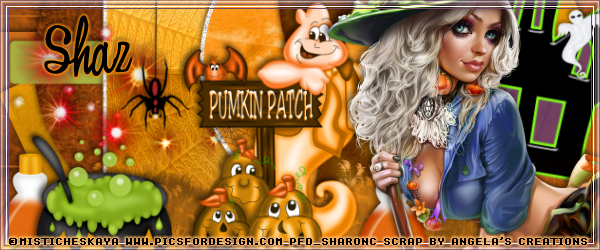
Witch in Training


This tut was written for those with a basic knowledge of psp.
I am using the awesome artwork of  Misticheskaya .
You need a license to use this art work. Please do not use without a license.

 You can find this art at PFD Store  HERE
 
Supplies Needed
I used PSPX...but any of them should work.
Ghostly Manners FTU by Angela's Creations  HERE
The kit is no longer on her blog, have no idea what she did with it.
Sorry for the problem.
Template by Dee and Kandee  Collabs  HERE
WSL_Mask 84  HERE
Filters
Oliver's Filter-Toile d' Araignee
Font Witched
 
Drop Shadow usually V2 H2 50 black

Open the template, duplicate and delete the credits, and the star, then go to Image, canvas size and as usual mine is 800 x 800.

Resize paper texture 70 to 84%, paste and apply your mask, delete and merge group, move below the template layers.
Green rectangle, resize paper sg3 to 84% and paste, invert delete.
Leave the orange strip as it.
Teal rectangle,  resize paper texture 55 to 84%, paste, invert, delete.
Purple oval, resize paper texture 70 to 84%, invert, delete.
Green stripe and orange circle leave as is.
Orange square, paste paper 18, apply Oliver filter-Toil d'Araignee
Leave green rectangle as it.
Teal circle, resize sg3 paper to 84%, paste, invert, delete.

Resize the tree to 60%, mirror and place off center a bit.
Resize the grass hill to 50%, place on one side, duplicate and mirror.

Resize your tube to 40%, and place on the right side.

Resize the haunted house to 10%, free rotate to the right at 10%, place on the right side behind your tube layer.

Resize the pumpkin patch to 15% and place in the center more in front of the tree.
Resize the boiling cauldron to 25% and place on the left side.
Resize the bottle to 10%, place below the cauldron layer, duplicate, move over by the witch.
Merge all the wordart together and resize to 75%, place at the bottom of your tag where you want it.
Resize the bat to 3%, duplicate however many times you would like and place where you like them.
Paste the sparkle element 2 on the left side, move below the orange circle layer.
Resize the owl to 15%, place on the upper left on the tree.

Resize the ghost to 5%, place by the house, duplicate a couple of times and place where you like.

If you are going to do a signature do not merge yet.

Add any other elements that you would like, once happy, close off any background and merge visible.
Resize first, then add your Copyrights and name and that's it.

If you want to do a signature

Open a new image 600 x 250, fill with #cb6c1a, close off your tube layer and wordart layer of your tag and paste, resize to 95% and adjust how you want it, then go back to your tag, open your tube layer, and copy and paste on the right side.
Merge visible and add a frame of choice, then add your copyright and name.
For the Avator,
size depending on your group or forum.
I did mine 150 by 200, copy the tag, resize to 75% and place how you wanted it, then merge visible, add your frame, copyright and name.
 
Hope you enjoyed doing this tut.
 photo buttonforpagefall_zps98c7cc22.png 

Monday, September 29, 2014

Happy Halloween


This tut was written for those with a basic knowledge of psp.
I am using the awesome artwork of  Lysisange.
You need a license to use this art work. Please do not use without a license.
 You can find this art at PFD Store  HERE
Supplies Needed
I used PSPX...but any of them should work.
 Scrap Candy Corn by Jens Sweet Temptations  HERE
Millie's Psp Madness Template 365  HERE
WSL Mask 84  HERE
Filter
Oliver's Filter - Toile'd Araignee
EyeCandy 4000-Gradient Glow (Optional)
Font of Choice, I used Bad Cargo 2.0

Drop Shadow usually V2 H2 50 black
 
Let's get started
*Remember to add your drop shadow as you go along*

Open the template, delete the credits and as usual go to Adjust, canvas size 800 x 800.

Working from the bottom up,  paste paper 1, apply your mask, delete and merge group.

Merge layer 2 down with layer 1,  apply Oliver's Filter, Toile'd Araignee and change the intensity to 100 or one you prefer.
Apply EyeCandy 4000-Gradient, color of choice, I use an orange color,  glow at 5.53 glow width or more if you prefer, Soft corners 25,  Overall Opacity at 100.

Select layer 3, paste paper 5, moving so you can see the word Boo at the top, invert, delete, select none.  Do the same with layer 4 of the template.
Apply an inner bevel on these with this setting
Shape 2, bevel width 4
15, 3, 4, 0
48, 36, 42
Color white.

Merge layer 6 down with layer 5, select all, paste paper 4, invert, delete, select none. Apply the gradient glow with the same settings but I changed the color to more of a yellow this time.

Select layer 7, paste paper 2, moving so more of the spiders are showing, invert, delete, select none. Apply the orange gradient glow this time.

Merge layer 9 down with 8, select all, paste paper 3, apply Oliver's Filter, Toile'd Araignee, intensity at 50.
Apply the yellow gradient glow this time.

Resize candy corn of choice to 25%, place in each square.
Rotate the wordart Halloween 90 degress to the right and move over to the right.
Add the yellow gradient glow as before.
Move the Happy wordart to the top left side, then go to Adjust, Hue and Saturation, colorize, with Hue 2 and Saturation 255, gradient glow with the yellow.

If using the same tube as I am, resize to 35% and place in the center.

Resize the ICU pumpkin to 40%, place on the right.
Resize ghost in a box to 55%, place on the right in front of the pumpkin.
Duplicate twice and move to the left more below the tube layer.

Paste and mirror the witch pumpkin and place on the left side.
Resize the kitty pumpkin to 45%, place on the left side.
Resize the cupcake to 30%, place in front of the kitty pumpkin.
Resize the scythe to 50%, place to the left below the kitty pumpkin layer.
Resize the winged skull to 50%, free rotate to the right at 15 degrees, duplicate, mirror and move down some on the left.

Add any other elements you like, then once happy, close off any background that you used, merge visible, resize first, then add your copyright and name.

That's it
Hope you enjoyed doing my tut.

 photo buttonforpagefall_zps98c7cc22.png 

Saturday, September 27, 2014

Cute Pumpkin Girl


This tut was written for those with a basic knowledge of psp.
I am using the awesome artwork of  VeryMany.
You need a license to use this art work. Please do not use without a license.
 You can find this art at their Store  HERE
Supplies Needed
I used PSPX...but any of them should work.
 Scrap Halloween 1 by Top Cats Tagz  HERE
There are 4 kits, different colors, I used the orange one.
 WSL Mask 84  HERE
Filter
EyeCandy 5-Impact-Gradient Glow
Font of Choice, I used Witches Magic

Drop Shadow usually V2 H2 50 black
 
Let's get started
*Remember to add your drop shadow as you go along*

As usual I open a new image, size 800 x 800.

Paste paper 7, apply your mask, delete and merge group.

Paste element 11, free rotate to the left at 10 degrees, all layers Unchecked.
Click inside with your magic wand, expand by 5, paste paper 1, invert, delete, now paste your close up tube, delete, select none. Move the paper and tube layer below the frame layer.

Duplicate  your tube layer, go to Adjust, Blur, Gaussian blur at 3, change the blend mode to hard light, merge down.
Paste element 22 on the left upper side below the paper layer of the frame.

Resize your tube to 55%, if using the same as I am and place on top of the frame on the left side.

Resize element 6 to 50%, mirror and move back to the left side under your tube layer, free rotate to the left at 10 degrees.

Resize element 17 to 60%, place on the right side, duplicate, resize that one to 85% and place by the first pumpkin.
Paste element 30 below the pumpkin layers on the right side.
Element 4 resize to 65%, mirror and place on the left side by the witch.
Resize element 1 to 40%, mirror, duplicate and place at the upper right side of your tag.

Resize element 20 to 50%, free rotate to the left at 15, and place by the house on the left, moving one below the house layer, erase the grass that is showing.
Resize element 43 to 50%, place on the left side, below the cat layer, duplicate, free rotate to the left at 15 and move to your liking.
Crop your tag to be sure no stray shadows are on the edges of your tag.
If you are going to do the Signature and Avator, do not merge yet.

Signature tag
Open a new image 600 x 250, paste your mask from your tag, duplicate, mirror and move over some.
Paste element 49 on one side, duplicate, mirror and adjust.

Then close off your tube layer, pumpkins layer, drink layer, cat, and shoes.
Copy merged and paste on your mask layer, resize to 95%.

Now back to your tag open all the layers you closed earlier.
Paste your tube and move to the left side some.
Paste the larger pumpkin and resize to 90%, place on the right side, then paste the smaller pumpkin and resize to 85% and place on the right side.
Paste the drink, resize to 85%,  move below the pumpkins on the right.
Copy and paste one of the bats and place on the upper right top, duplicate, mirror, resize to 65% and place on the left.
Paste the boots below the tube layer on the left side, resize to 85%.

Now add your frame
I used Eye Candy 5-Impact, Gradient Glow for my frame with these settings,
Click the Basic tab,  then Outside Glow, Mask Selection checked,
Glow radius 10,  soft corners 7,  Overall Opacity 100,
Distortion lump size 53, Gradient smoothness 100.
If it does not show up, add a new layer and fill with a color and merge your tag, then apply the filter.
Add your copyright and name now.

Avator
Whatever size your forum or group allows.
I did mine 150 x 200
Paste your signature tag, move how you like it, merge visible, add your frame and then add your copyrights and name.
I used Eye Candy 5-Impact, Gradient Glow for my frame with these settings,
Click the Basic tab,  then Outside Glow, Mask Selection checked,
Glow radius 10,  soft corners 7,  Overall Opacity 100,
Distortion lump size 53, Gradient smoothness 100.
If it does not show up, add a new layer and fill with a color and merge your tag, then apply the filter.
That's it
Hope you enjoyed doing my tut.

 photo buttonforpagefall_zps98c7cc22.png